Lyvira Rental Studio — Manual
Lyvira Drive
Theme manual — car rental. Product version: 3.8.21.
- What am I installing?
- Step-by-step installation
- How does my licence work?
- What do I do on the first day?
- The demonstration: install it, keep it, remove it
- Where do I enter my company?
- How do I change the look?
- How do I edit my pages?
- How do I declare my fleet?
- How does the customer book?
- Cancellation, changes, deposit: what are the rules?
- How do I get paid?
- Where do the contract and invoice come from?
- How do my staff work?
- How do I sell in several languages?
- How do updates work?
- What this theme does not do
- Troubleshooting
1. What am I installing?
Two parts, and they go together:
| Part | Role | Required |
|---|---|---|
| Theme Lyvira Drive | The look and the pages of your site. | yes |
| Module Lyvira Rental | The engine: availability, fleet, bookings, contracts, invoices, staff area. | yes |
| WooCommerce | The cart, the order and the payment. | yes, free |
| Elementor and Elementor Header & Footer Builder | Redo the header, the footer and the pages with the mouse. Without them, the theme displays as delivered. | no, free |
| WooCommerce Stripe | Online card payment. Without it, payment at the counter remains available. | no, free |
| Lyvira Solution Installer assistant | A single screen that installs, activates and checks everything above, and tells you what is missing. | no, shipped with the theme |
The theme alone displays a site, but nothing can be booked: the module carries the trade. The list above is the same one the installation assistant shows, in its “required / optional” column: what is required blocks the installation while it is missing; what is optional blocks nothing.
What you need before starting: WordPress 6.9 or newer, PHP 8.1 or newer, and an administrator account. An ordinary WordPress hosting plan is enough; no command line is needed.
2. Step-by-step installation
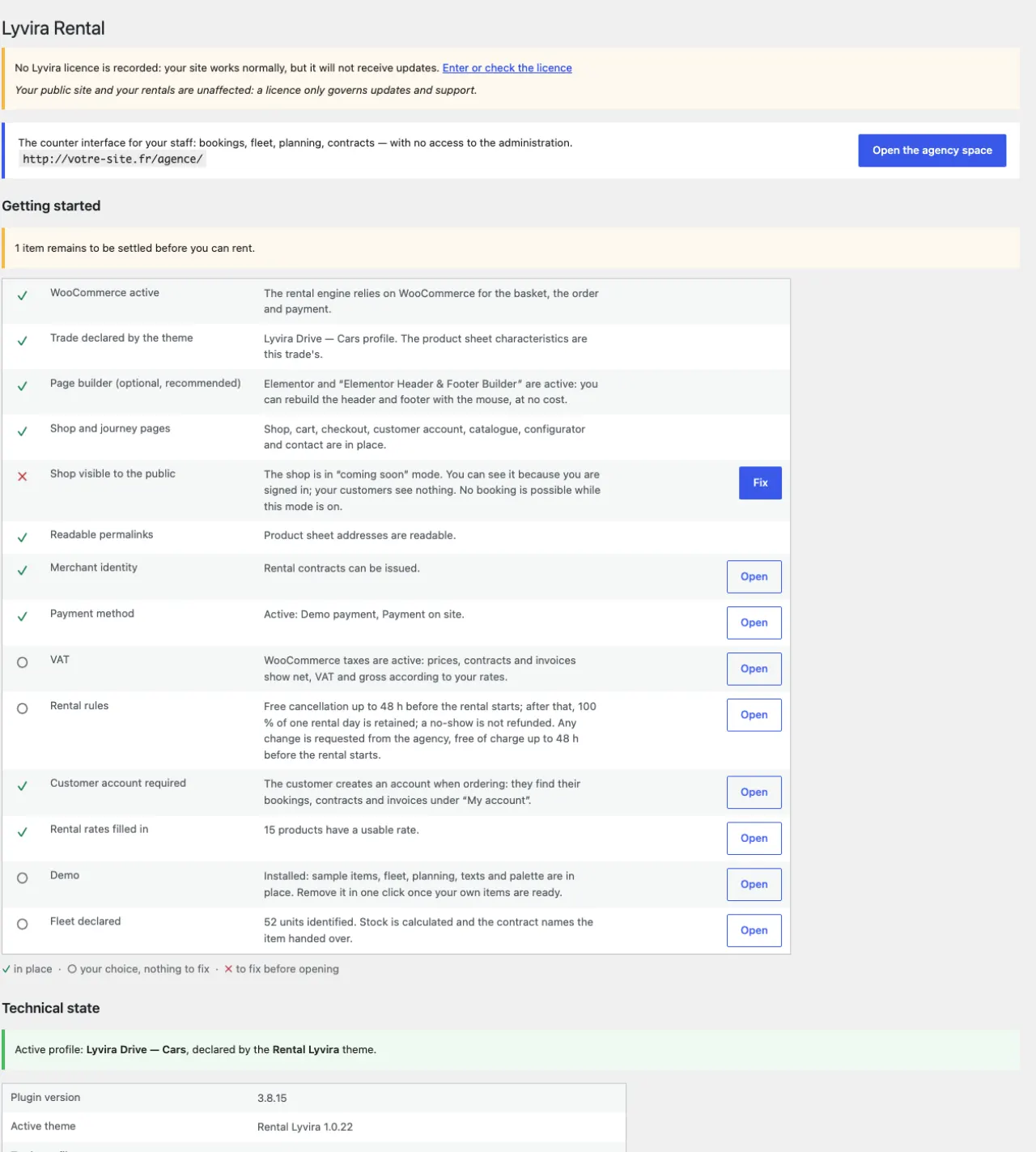
Allow a quarter of an hour. Each step is a WordPress screen; if you have never installed an extension, follow the clicks in order.
- WooCommerce. Plugins → Add New, search for “WooCommerce”, Install, then Activate. Its setup wizard can be skipped: the module sets the essentials.
- The Lyvira Rental module. Plugins → Add New → Upload
Plugin, choose the
lyvira-rental.zipfile received with your order, Install, Activate. - The Lyvira Drive theme. Appearance → Themes → Add New →
Upload Theme, choose
rental-lyvira.zip, Install, Activate. On activation, the theme creates its pages — catalogue, booking, contact, FAQ, terms, legal notice, cart, checkout, account — in your site's language, and composes the menu. - The getting-started screen. Open Lyvira Rental in the left menu. The list names what is still missing and offers, button by button, to fix it: WooCommerce pages, public shop, payment method, Elementor templates if you installed Elementor.
- Your licence. Enter the key you received (see the next section). Without it everything works, but you do not receive updates.
- A first look. Open your site: the delivered home page shows with its texts and banner. The catalogue is empty until you declare an item — or install the demonstration (section 5) to see the whole journey at once.
- A page builder, if you want one. Plugins → Add New, search for “Elementor”, Install, Activate. The free version is enough: all your pages are built to open in it. You may also stay with the WordPress block editor, which is already there.
One site, one trade. Each Lyvira theme carries one trade. On a given site, only one Lyvira theme is active at a time, and another trade's demonstration is removed when you install yours. To rent cars and equipment, make two sites — or a WordPress network with one site per trade.
If you hand the installation to a contractor, this manual is enough for them; they need neither server access nor any particular tool.
3. How does my licence work?
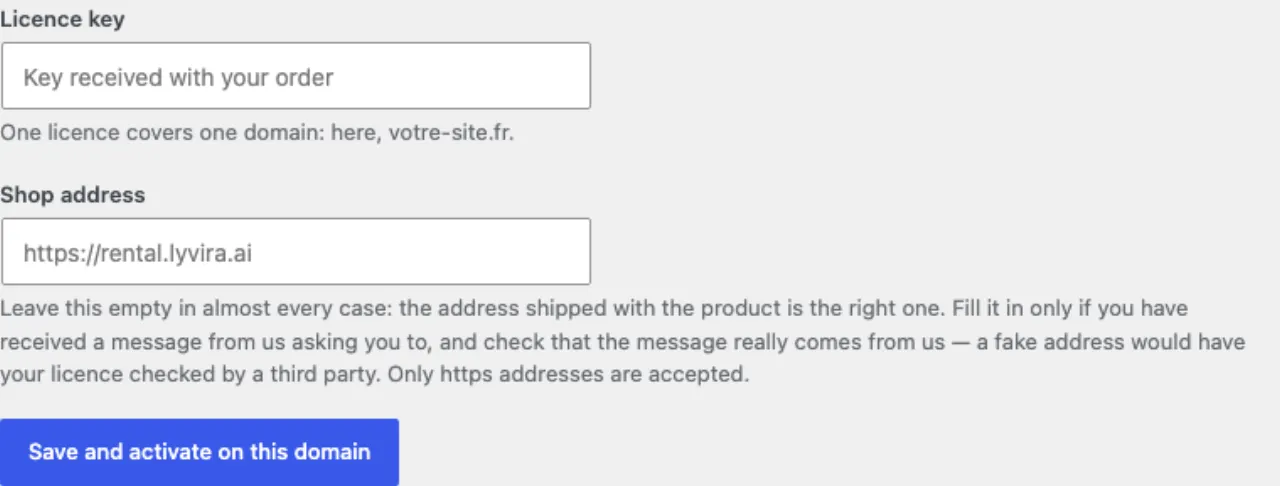
Your key arrives with the order. You enter it in Lyvira Rental → home
screen → Licence, then click “Activate on this domain”. The full licence
text is the LICENCE.txt file shipped in the theme and in the module:
one licence per domain, updates and support for twelve months, no resale or
redistribution. The portions of code that derive from WordPress remain under the
GPL, as the law requires; the rest — styles, images, texts, translations, this
manual — is the publisher's property.
One licence covers one domain. And it is worth knowing what “one domain” means in two particular cases:
- Your working copy is accepted, without an extra
licence:
preprod.mysite.com,staging.mysite.com,test.mysite.com,mysite.localand a few other recognised forms count as the same site asmysite.com. - On a WordPress multisite in sub-directories, a single licence
covers the whole network — a consequence, not a favour:
mysite.com/branch-aandmysite.com/branch-bshare the same domain, hence the same licence. In sub-domains (a.mysite.com,b.mysite.com), those are distinct domains, hence one licence each.
What an expired or missing licence changes: nothing on your site. Your pages stay online, your customers keep booking, your contracts are still produced. You lose automatic updates and support, and a message reminds you of it in your administration. A theme that switched itself off for a forgotten renewal would switch off your business: that is not our way.
And if you are refunded: your key is deactivated, as one would expect — it no longer opens updates or downloads, and cannot be activated on another domain. Here too, your site does not stop: it runs with the version you already have. If your key is refused and you did not ask for a refund, write to support: that is a mistake, and it gets fixed.
4. What do I do on the first day?
The Lyvira Rental screen opens on a getting-started list that names what is missing. In the order that matters:
- Enter your company identity — without it, no contract can be produced;
- declare at least one item to rent and its units;
- check that WooCommerce has its pages — cart, checkout, account;
- choose how you get paid;
- make the shop public — WooCommerce installs it in “coming soon” mode, which hides your catalogue from every visitor without saying so.
Backups. As for any WordPress site: a free backup extension (WPvivid, UpdraftPlus…) set to back up the database and files automatically, sent off the server (Drive, Dropbox, FTP). Your bookings, fleet, schedule and invoices live in the WordPress database: a site backup contains them all, there is nothing else to save. To restore, the same extension reloads the backup; the module finds its tables and carries on with nothing to reconfigure.
5. The demonstration: install it, keep it, remove it
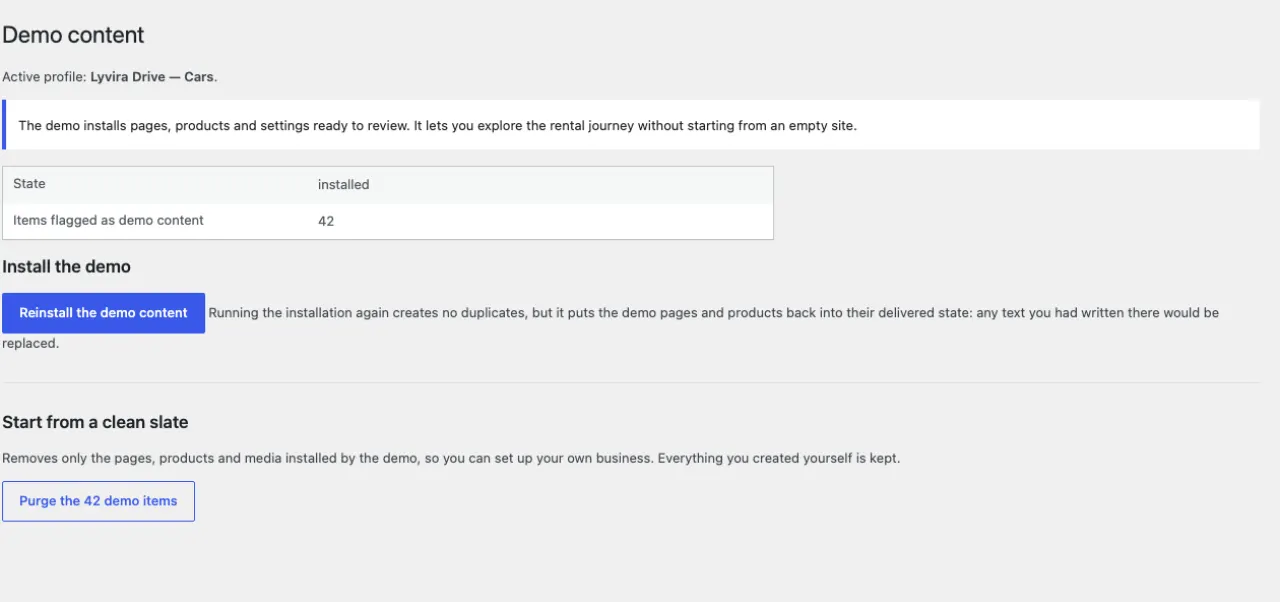
Lyvira Rental → Demo → Install the demo sets up, in one click, a complete car rental site: items with their photos, characteristics and prices, a fleet of units, a filled planning, the page texts — catalogue presentation, FAQ, rental terms, legal notice — and the trade's colour palette. Everything is in your site's language. It is the quickest way to see the journey end to end, from booking to return, before filling it with your own items.
Everything the demonstration sets up is marked as such: you
recognise it by the word “demonstration” in the administration, and the contact
details in it are fictitious (an e-mail address in .example, a
01 99 telephone number, a sample company number). Nothing in it refers to
the publisher.
Keeping and editing it
You can start from the demonstration and rework it: replace the photos, rename the items, rewrite the texts. As soon as you edit an item or a page, it becomes yours: a change of site language or a reinstallation of the demonstration no longer touches it. What you have not touched keeps following the site's language.
“Reinstall the demo content” puts the demonstration pages back into their delivered state. A text you had written in one of those pages would be replaced — WordPress keeps the previous version in the page's Revisions, but better not to count on it: once your texts are in place, do not use that button any more.
Removing it
Lyvira Rental → Demo → Purge removes everything the demonstration set up — items, units, planning, sample texts — and leaves intact everything you created or edited. Your journey pages remain, cleared of their sample text, ready for yours.
6. Where do I enter my company?
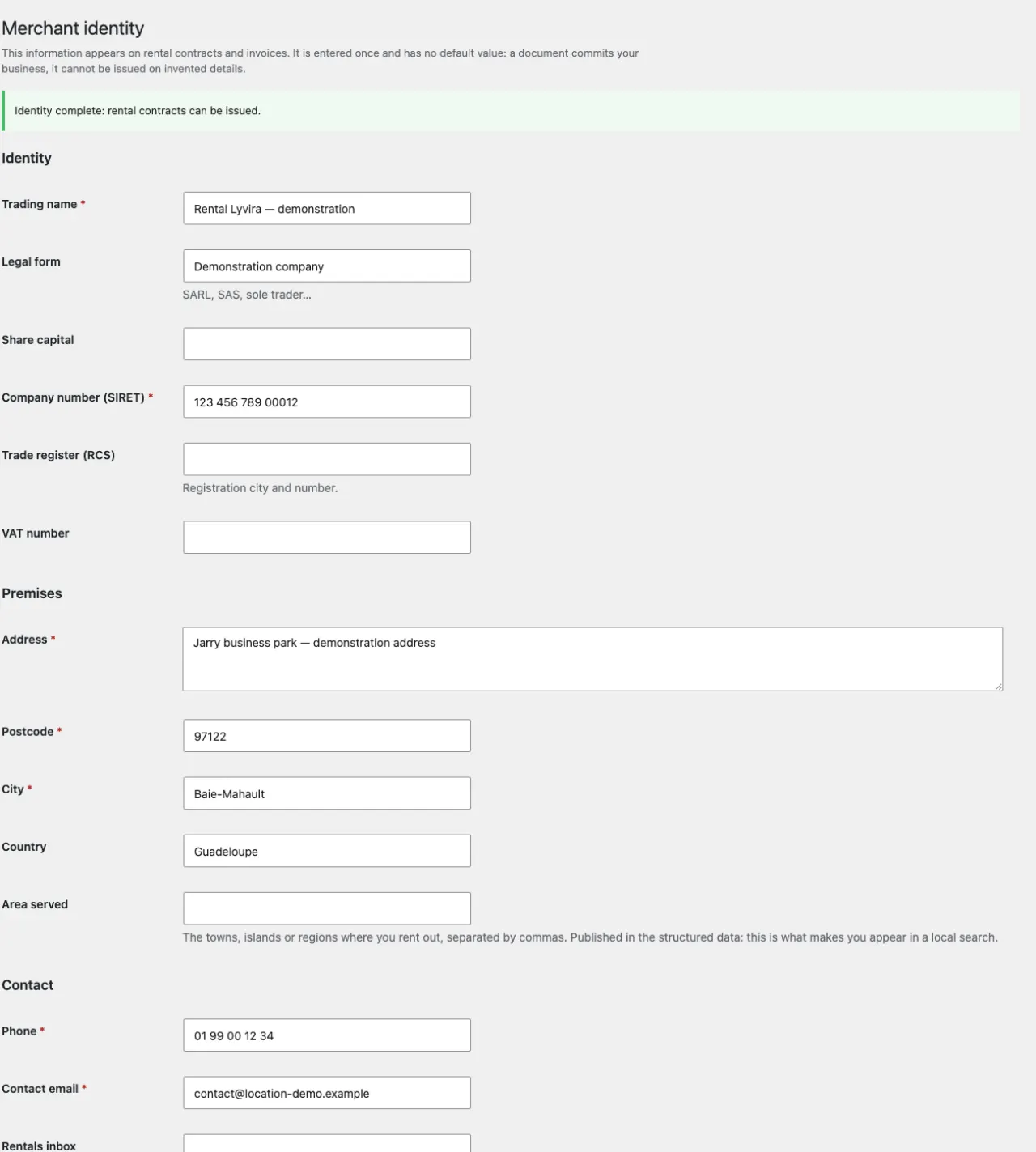
Lyvira Rental → Identity. This information is not decoration: it is printed on your contracts and invoices, and feeds the structured data that search engines read.
Nothing is pre-filled, deliberately. A contract produced on an invented company name has no value, and a screen that tells you what is missing is better than a false document. Mandatory mentions are flagged; the Area served field deserves a word: it lists the towns or regions where you actually rent, and it is what makes you appear in a local search.
7. How do I change the look?
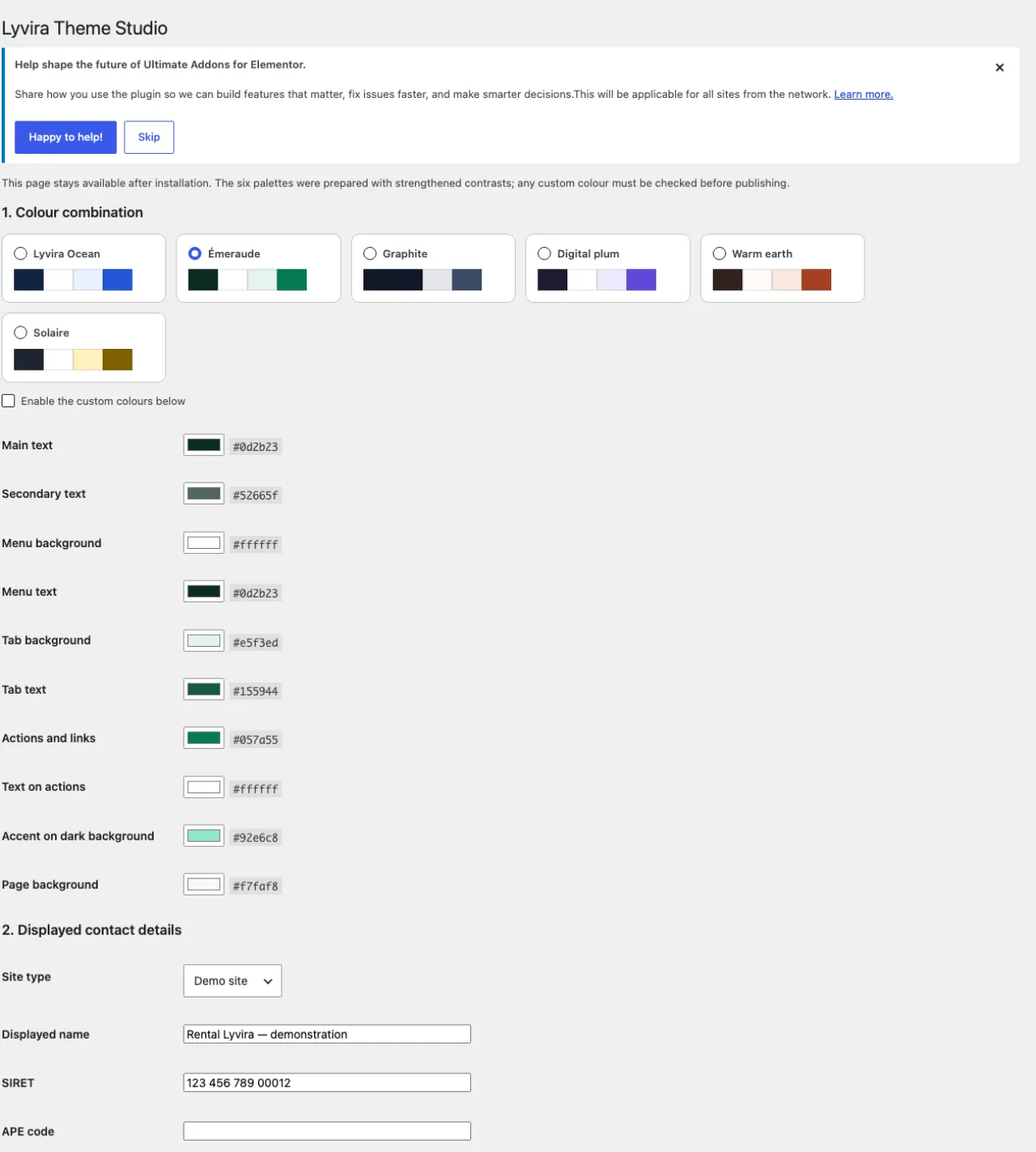
Appearance → Lyvira Theme Studio gathers what can be set without touching code: the colour palette, your contact details, your opening hours, and the texts and buttons of the home banner — eyebrow, title, subtitle, calls to action. A field left empty keeps the text delivered with the theme.
Colours
Six palettes are shipped; the demonstration sets one, the trade's. Choose another with one click — the preview happens on your site before saving — or tick Enable the custom colours below to set each shade: text, background, menu, buttons, accent. Your colours apply to the whole site, catalogue and booking journey included. The logo is set in Appearance → Customize → Site Identity.
Menus and footer
Appearance → Menus for the main navigation and the first two footer columns; Appearance → Widgets for the third, the contact details one. As long as you do not touch them, the theme shows what it delivered.
The emails your customers receive
Booking confirmation, contract, invoice : your customers receive these in your name. The theme puts your logo and your colour in them without asking — the logo from Customise → Site Identity if you have set one, otherwise the one shipped with the theme, and your palette colour for links and buttons.
The day you set your own logo, your emails follow it. And if you pick an image or a colour yourself under WooCommerce → Settings → Emails, the theme stops touching it : your choice always comes first.
That same page holds the rest : logo width, header alignment, font, and the footer text. The footer shows your site name and address by default ; it is where you write whatever you want your customer to read at the bottom of their confirmation — a phone number, an email address, your opening hours. A live preview shows the result before you save.
Going further, for free
With Elementor and the Elementor Header & Footer Builder extension, both free, you redesign the header and the footer with the mouse; the theme steps aside and makes room for your template. Without these extensions, nothing is missing: the theme never requires a paid version.
8. How do I edit my pages?
All your pages open in the WordPress editor, in the block editor or in Elementor — including the home page. As long as you leave it empty, it shows the delivered layout; as soon as you write something, your version is shown.
And you can take a page over entirely. As soon as you build a page with a page builder and save it, your version is what visitors see: the delivered layout steps aside. It comes back if you delete your composition — nothing is lost, and you never have to edit a theme file. As long as you have built nothing, the delivered page stays, and what you write in the editor is added below it.
For layout we recommend the Elementor plugin in its free version: Plugins → Add New, search for “Elementor”, Install, Activate. It is not essential — the WordPress block editor is enough — but every one of your pages is built to open in it: the home page, the contact page, right down to the Checkout page. One exception, and it does not come from the theme: the Shop page is not a page but the list of your items; the free Elementor does not lay out a list, and its paid version is required for that. Its appearance is set in Appearance → Customise.
Your delivered pages: Our vehicles, How it works, Assistance and accident report, Contact. The texts the demonstration puts in them — catalogue presentation, questions and answers — are ordinary editor blocks: click in a paragraph to rewrite it, in a collapsible question to change its answer, add or remove a section as in any post. Item photos are changed on the product sheet, Product image; a delivered image bearing the words “sample visual” is waiting for yours.
One thing cannot be edited, and that is deliberate: the search and booking journey. You place it where you want in a page, as a shortcode, but you do not change its workings. This is what guarantees that a layout tweak does not break your bookings. Its language, for its part, follows your site's.
| Shortcode | What it displays |
|---|---|
[rl_booking_search] | the search form: branch, dates, driver's age |
[rl_booking_results] | the list of vehicles available for the requested period |
[rl_booking_options] | the choice of cover and options, then add to cart |
[rl_vehicle_grid] | a grid of vehicles, for a presentation page |
[rl_accident_report] | the “accident report” block, with the document to download |
9. How do I declare my fleet?
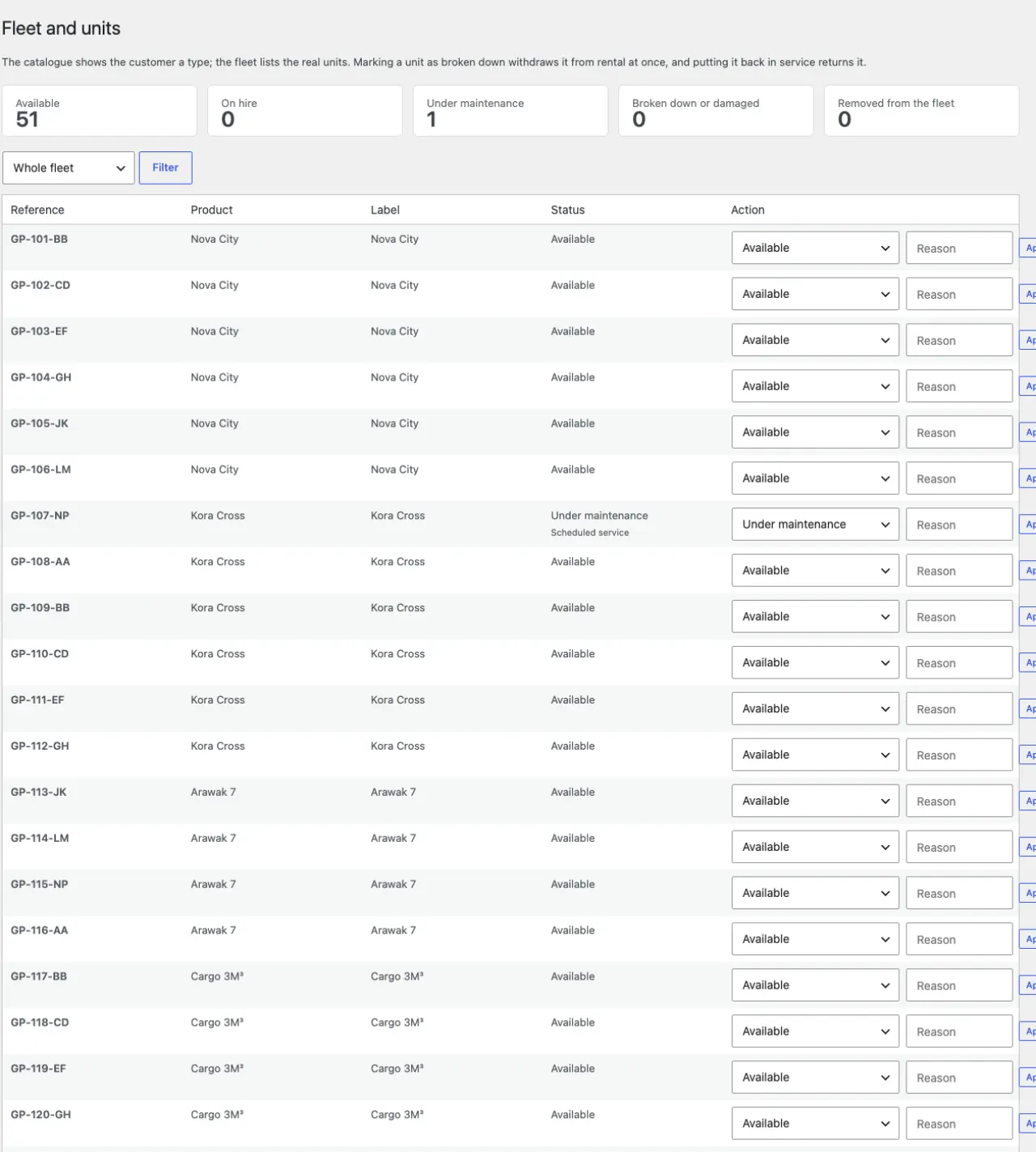
Two levels, and the distinction is the heart of the module:
| Level | What it is | Where |
|---|---|---|
| The item | What the customer chooses and sees in the catalogue, with its price and characteristics. | WooCommerce products |
| The unit | The real object you hand over, with its reference. It is the one named on the contract. | Lyvira Rental → Fleet |
The available quantity is calculated from your units — you do not enter it. And a rented item is never deducted from your stock: it is the period that is held, not the object. A unit declared out of order leaves the availability without you having to touch the stock.
Characteristics specific to this trade: category, gearbox, fuel, seats, doors, bags, air conditioning, minimum driver age, licence seniority, kilometres included, price per extra kilometre, deposit.
A screen specific to this theme, Rental settings, adds the branches, opening hours, closing days and the minimum notice before a pick-up. A booking that falls outside is refused on entry, with the reason shown.
10. How does the customer book?
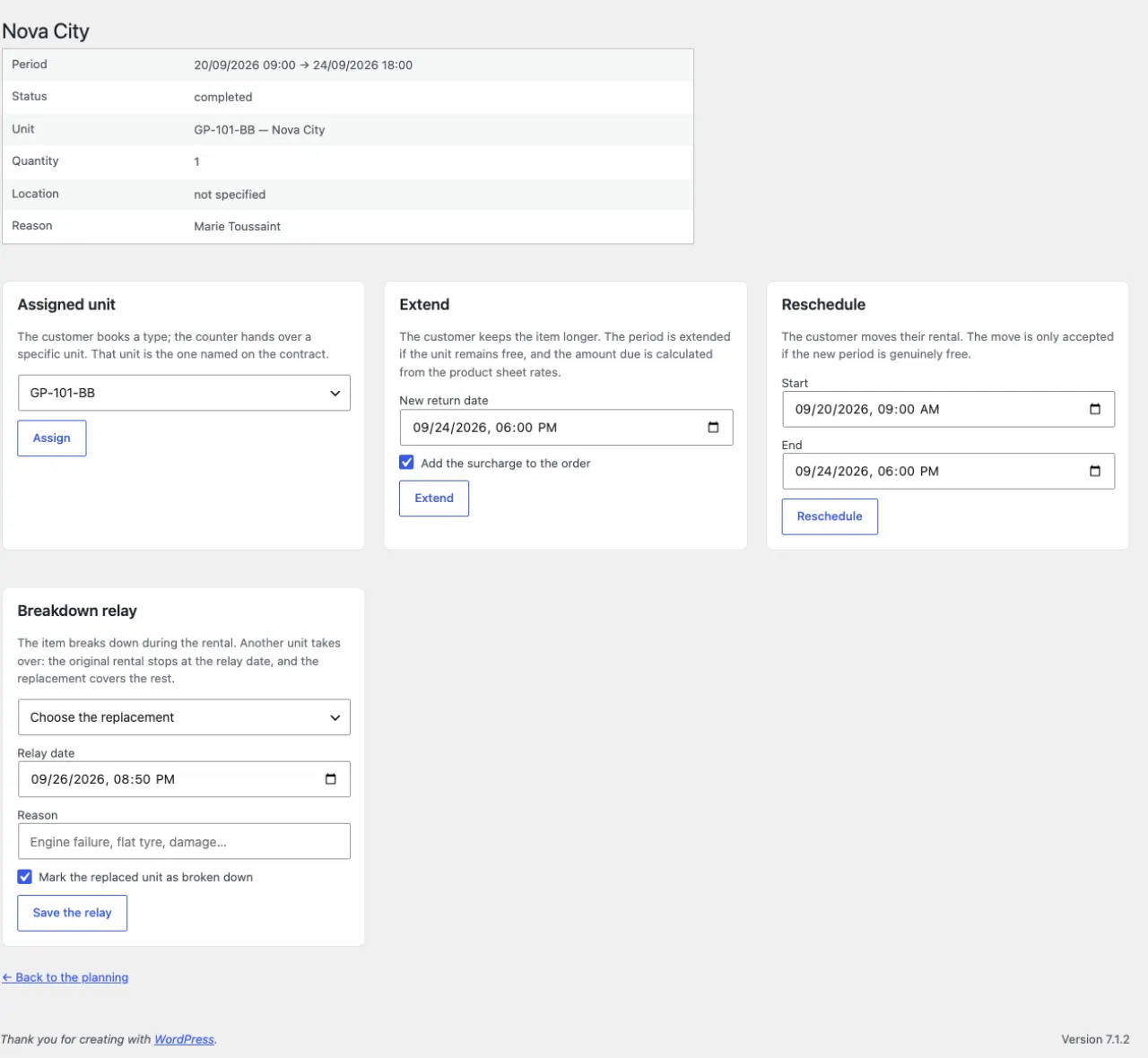
They search for a period, see what is available, configure, pay. At the order, the module holds the period on a unit, assigns a booking reference and makes the contract available.
The driving licence is requested at payment — number, issue date, expiry date — and the module refuses a booking whose licence would expire before the return. This is a check you cannot disable, because it protects you.
The customer creates an account when ordering (guest checkout is closed by the module): under My account → Orders → My booking they find their booking, their invoice and credit notes, and can request a change or cancel.
11. Cancellation, changes, deposit: what are the rules?
Everything is set under Lyvira Rental → Rental rules, and the customer reads the rule in force when paying and in their account.
- Cancellation: free up to a number of hours before the start (48 h as shipped); after that, a retention — one rental day or a percentage, your choice; a no-show is not refunded. The customer cancels from their own account: the period is released at once, the refund goes back to the payment method used (Stripe refunds online), a credit note is issued and the customer receives an email saying what is owed to them. A booking paid on site refunds nothing: the email says so too.
- Changes: the customer does not change their dates alone. They send a request from their account; it shows up in the staff area (Change requests tile) and you move the booking with the Move card. Free of charge up to the set delay, at the new price beyond — you tell the customer before moving.
- Deposit: the amount comes from the item sheet and is never charged online. Basket, order, contract and invoice all say “payable on site, never charged online”: card imprint or pre-authorisation at the counter, released on return.
- Adjustable pricing: seasons (a coefficient per period, across the new year if needed), long-term discount tiers, one-way fee, young driver surcharge (cars). Monthly plans (appliances) take neither seasons nor discounts: they bill the first month.
- VAT: WooCommerce's. Taxes on, everything shows excl. VAT / VAT / incl. VAT; taxes off, the documents carry “VAT not applicable”. The demo sets a sample rate for you to replace with yours.
12. How do I get paid?
Two methods are provided: bank card, through the Stripe extension for WooCommerce, and payment on site, which records the booking and leaves the settlement to the counter.
What happens when a card is declined is worth saying: the order fails, the period is released and your stock stays intact. You do not end up with an item blocked by a payment that did not go through.
An “on site” order is confirmed but unpaid: the module knows it, the invoice shows the amount due, and a cancellation refunds nothing. An extra added after payment — extension, late-return days — appears on the invoice as a balance to collect at the counter: nothing is charged without the customer.
13. Where do the contract and invoice come from?
Both are produced from the order, and from the staff area. They print from the browser — there is no PDF library to install, and therefore nothing more to maintain.
- The contract states the parties, the item handed over, the duration, the pricing, the security deposit and the insurance, then your particular terms and your general terms as an appendix. It fits on one page, the appendix on its own.
- The invoice bears a sequential number assigned at payment (or when a pay-on-site booking is confirmed) and never reused. It details the period, the unit, the services, what was collected and any balance. Invoices issued during the demo are erased with it: your first real invoice is no. 1.
- The credit note: every refund — and every cancellation of an invoiced order — issues a separately numbered credit note (AV-) that references the invoice, splits net and VAT and says how it is settled. That is what French law expects: an issued invoice is not edited, it is corrected by a credit note.
- The customer finds their invoice and credit notes under My account as soon as they exist; the contract is signed at the counter.
The Consumer mediator field of the identity prints on the contract (“Disputes” section) and in the invoice footer: a mandatory mention when selling to consumers in France. The demo puts a fictitious mediator there for you to replace with yours.
Lyvira Rental → Identity contains a text editor for your particular terms and your general terms, with a preview button. A seventeen-article model is pre-installed: it can be adapted, and it must be proofread by you — it is your commitment, not ours.
14. How do my staff work?
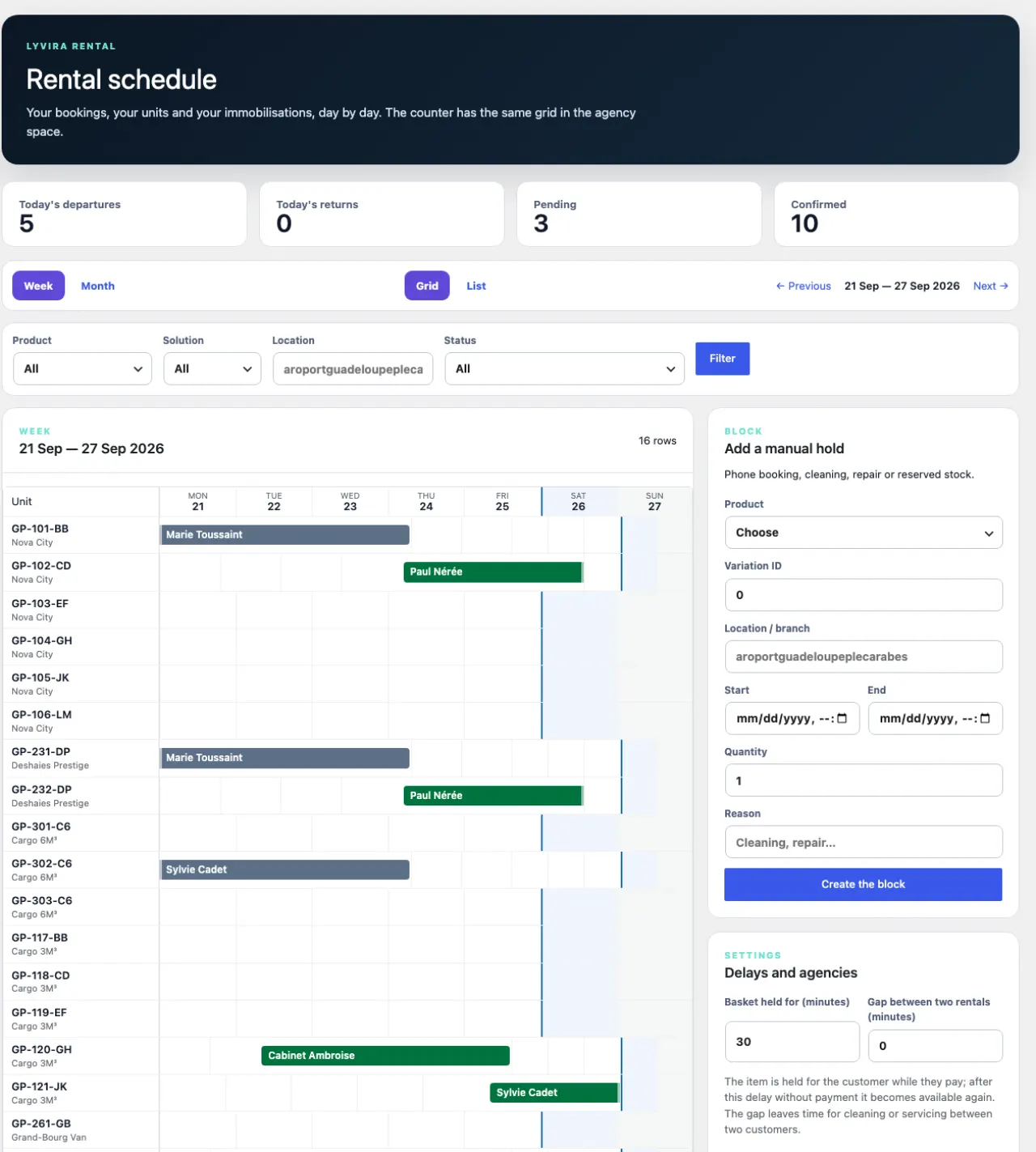
Your staff do not need to enter the WordPress administration. The module opens
a staff area at /agence/: a counter interface with
the day's departures and returns, the planning, the bookings, the fleet and the
product sheets.
You create their accounts from this area, without going through WordPress. A removed employee loses access; their history remains. The link also appears in your Lyvira Rental menu, so you do not have to remember it.
On the day, a booking's Handover and return card records the handover of the item — mileage, fuel, condition noted — then its return: the unit's condition, a possible remark, and, if the customer returns late, the extra days charged at the sheet's rates. The booking then becomes completed, the period is released and the invoice takes it all in. An extension requested before the end is settled in the same place; Move shifts the whole period (order, contract and invoice follow), Relay after breakdown replaces the unit during the rental and takes you to the replacement booking.
New booking is for the phone and the counter: item, period, departure agency, customer, price (or the sheet's), and the “already paid at the counter” box when the customer paid in front of you; otherwise the booking is marked payable when the item is handed over. Demo bookings, placed directly in the schedule without an order, are neither handed over nor returned: they illustrate the schedule.
In the schedule, each colour has its legend: confirmed, payment in progress, completed, immobilisation, relay.
Everything an agent does from this area stays linked to your products and your orders: there is no separate data to reconcile.
15. How do I sell in several languages?
The module and the theme are translated into French, English, Spanish, German, Italian and Portuguese, booking journey included. Change the site language in Settings → General and everything follows — forms, cart labels, checkout fields, contract, invoice.
The demonstration content follows too, as long as you have not edited it: items, categories, page texts, terms, notices. Switch the site to English, and the demonstration speaks English.
What does not follow, and rightly so: what you wrote. Your product names, your pages, your general terms are your content. To translate them, you need a multilingual extension; the module stays out of it.
If your site speaks several languages, each customer is served in theirs, and you in yours. The booking remembers the language read at the time of the order: confirmation emails go out in that language, and the contract, the invoice and the credit note are issued in that language — whoever opens them afterwards. An invoice carries a number: it must say the same thing to you, to your customer and to your accountant.
The other way round, what is addressed to you stays in your shop's language: the change request a customer sends from their account, the messages from your forms, the order notes. An Italian customer does not write to you in Italian without meaning to.
For a language written right to left — Arabic, Hebrew, Persian — the layout mirrors itself (header, banner, cards, forms, contract and invoice). The theme and module texts are not translated into these languages: they show in English or French, and a multilingual extension translates them like the rest.
16. How do updates work?
Like those of any extension: WordPress notifies you, you click. The theme and the module fetch versions from our shop, and your licence authorises the download.
Without a valid licence, you see that a version exists but you do not download it. We would rather inform you than leave you in the dark.
If you customise with a child theme, nothing changes for your updates. A child theme is the usual way to change a theme without the next update erasing your work. It is the theme you bought — the parent — that receives versions and that your licence covers: your child theme needs no licence of its own, and costs you no second one. You will see updates for the purchased theme exactly as if you had not customised it, and your child theme is never overwritten.
17. What this theme does not do
Better to read it here than after the purchase:
- No recurring payment: an order records one settlement, not a subscription. A dedicated extension is needed to charge every month.
- No synchronisation with third-party management software for now: the module is the source, not a mirror.
- No photographic condition report yet: the deposit field exists and prints on the contract, but the departure–return condition sheet with photos, mileage and signature is planned for a later version.
- No translation of your content: the interface is translated, your texts remain yours.
- No speed optimisation on your behalf: the module loads little (one stylesheet, sized images), but a page's weight mostly comes from Elementor and WooCommerce. On mobile, a cache extension that combines stylesheets and, in Elementor, the “Inline Font Icons” option make the difference — common practice, not an exception to this theme.
18. Troubleshooting
| What you see | What to look at |
|---|---|
| The catalogue is empty although I have products | Does each item have at least one unit declared in the Fleet? The quantity comes from there. |
| “No availability” for a free period | Is a unit out of order or already assigned? The planning shows it line by line. |
| Cannot produce a contract | Is the company identity complete? The screen names what is missing. |
| Visitors cannot see the shop | WooCommerce's “coming soon” mode is on by default. The getting-started screen offers to remove it. |
| My licence is refused | The message says which case applies: unknown key, other domain, or expired. A working copy is accepted; another production site is not. |
| A text stays in French in another language | If it is a text you wrote — product, page, terms — it is your content: it needs a multilingual extension. A demonstration text you have edited counts as yours. |
| A photo shows “sample visual” | It is a demonstration image waiting for yours: Products → the item → Product image. |
| The home page has lost its background image | The banner is a delivered Elementor template: Lyvira Rental → getting started → Install the delivered templates restores it. Without Elementor, the theme shows its native banner. |
| The catalogue shows another trade's items | Another Lyvira theme's demonstration had been installed on this site: Demo → Install removes it and sets up yours. |
| I want to start from scratch | Demo → Purge removes all the demonstration content; your own items and texts remain. |
| Lyvira screens say “WooCommerce is deactivated” | WooCommerce was deactivated: reactivate it under Plugins. Nothing is lost; the public site stays online meanwhile, without a basket. |
| I changed theme and the booking journey disappeared | The trade is declared by the Lyvira theme. Reactivate it (Appearance → Themes): pages, fleet, schedule and bookings come back. Only an administrator sees the message left in place of the blocks. |
| A customer says the page shows an item that is no longer available | Is a cache extension keeping an old page? The module marks its availability pages “do not cache”; clear the cache and check the extension honours it (the common ones do). |
| The invoice shows a balance although the customer paid online | It is an extra added after payment — extension or late return: it is settled at the counter, the invoice says so. |